You may be managing just one property or perhaps a different few. Regardless of the size and type of your portfolio, you should take a minutes to configure the settings of each of your resident portals.
What is the resident portal? The resident portal is as it sounds, the portal from which residents log in to Max Condo Club. This portal typically allows them to perform the various actions that you select to enable as self serve. You can read more on self serve of every Service in the tutorial designated for each one of the Service that allows for self-serve.
To configure your properties in the navigation menu, navigate to Administration > Properties. You will see a data set with all the properties our staff has on-boarded to your account. When you click on any one of the properties, you'd be to start configured the parameters on the Detailed View Pane on the right.
Some of the fields that you want to adjust and pay attention to are:
- Phone number of the property
- Address and Postal Code
- Type of Property (i.e Condominium, HOA, Strata, Co-op, etc).
- Date of Incorporation
Once you've set those, move to settings up the 4 attributes of the resident portal:
- Welcome Message - the message that resident will see upon login to the resident portal
- Invitation Email - the body and the subject of the invitation email that will be sent when you invite your residents to join and register for the resident portal
- Contact us - the are in which they can get your contact information to get in touch (Its a free text so you can choose to share anything from your contact details to even office hours)
- Background image of the portal - to color and pop to their digital account.
When this setup is complete, move to the Services Tab and enable/disable the services that you would like to use for this property.
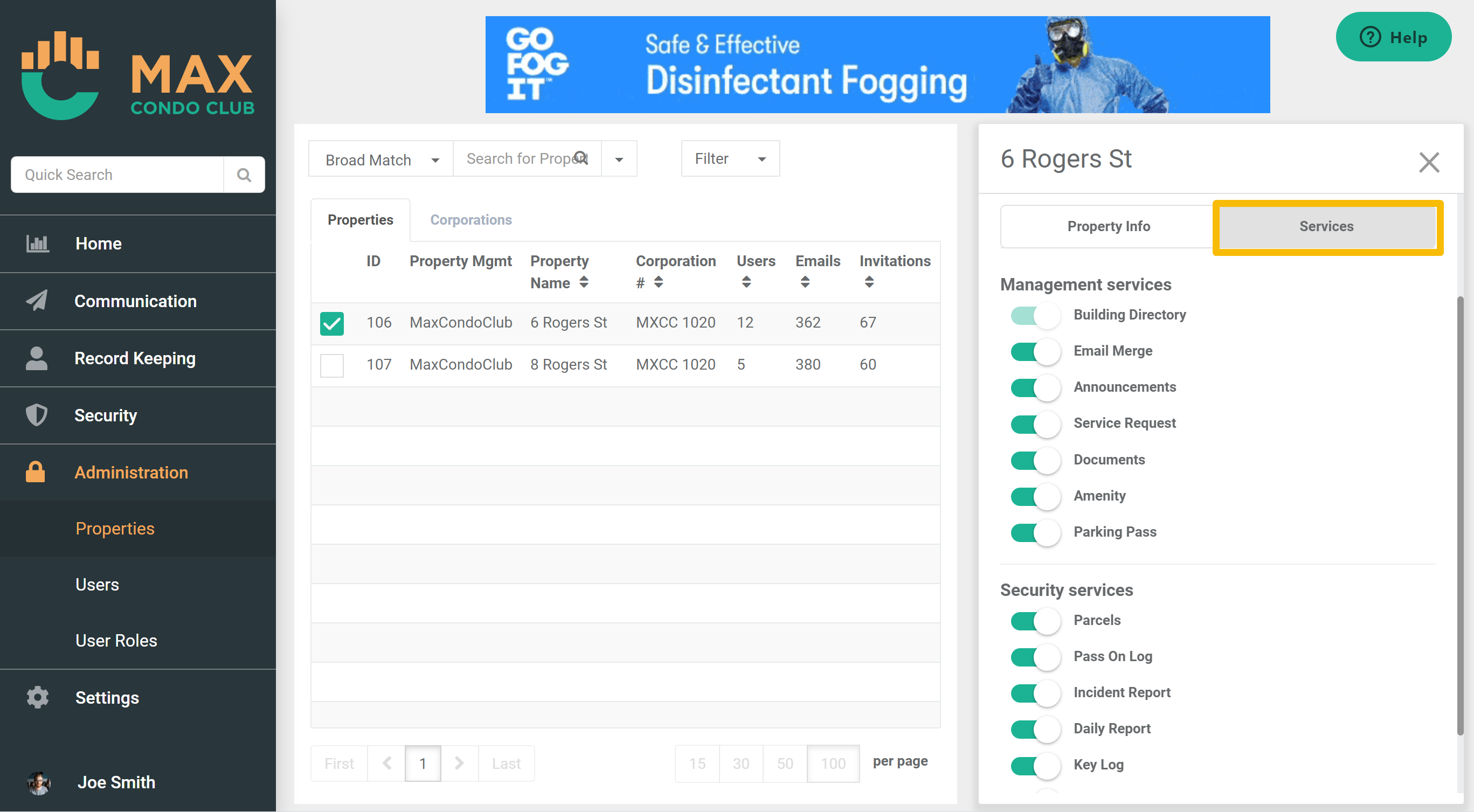
Once complete, move to the next property and repeat those steps until you are done configuring all properties in your portfolio.
Next step, set up access and control permissions for your staff by creating user roles.
Comments
0 comments
Please sign in to leave a comment.